Welcome to MaiaEdge
Let's get started
Your PBC has arrived! Automated private path provisioning is in your near future. This page is your guide to racking, cabling, and claiming your new Path Border Controller and Port Extender (if purchased).
PBC Installation Guide
Follow the steps below to install your Path Border Controller.
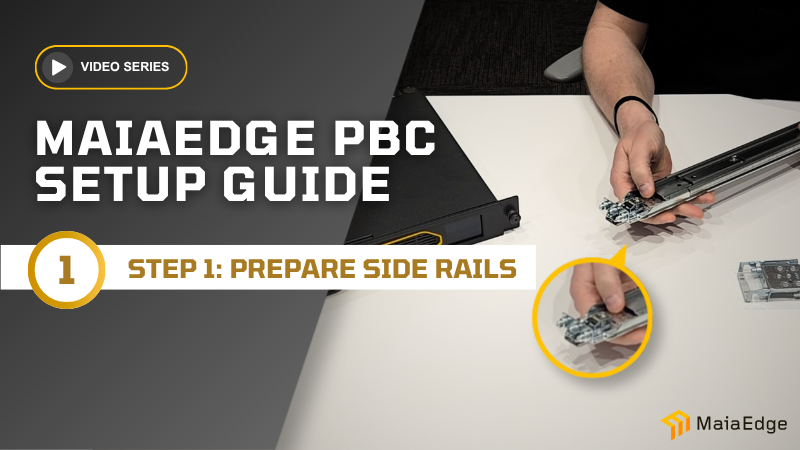
Prepare the Side Rails
Before anything goes into the rack, you'll need to prep your side rails. Identify the front of each rail, extend the innermost component, and release the assembly using the spring-loaded retaining clip.
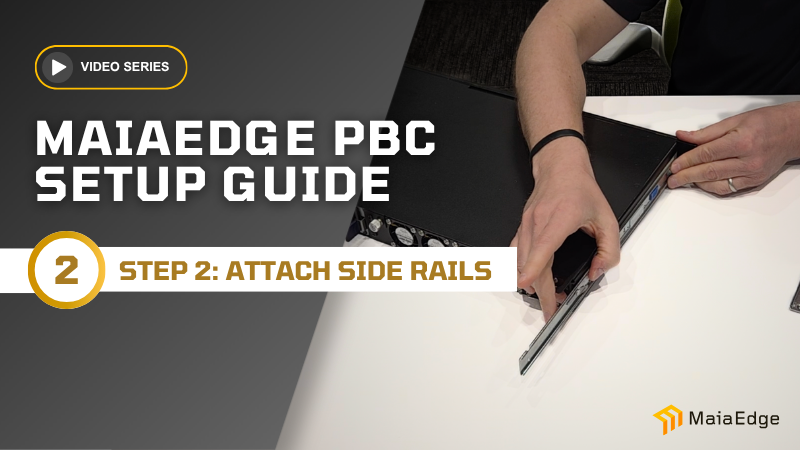
Attach Mounting Brackets
Next, attach the mounting brackets to both sides of the PBC using the six screws in your kit. The brackets aren't side specific, so either one works on either side. Orient them so the blue retaining clip faces the front.
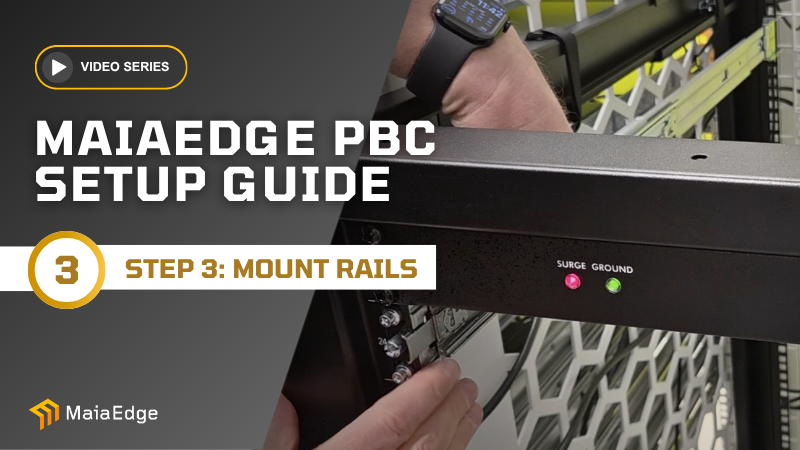
Install Side Rails in the Rack
With your mounting brackets in place, it's time to install the side rails in your equipment rack. Align the rear gray plastic clip with the hand holes, snap it into position, then extend the slider and lock in the front retention clip.
Note The fans installed in the PBC blow from front to back. If your operating environment has a distinct cold aisle / hot aisle configuration, the front of the PBC (with the logo) should face the cold aisle.
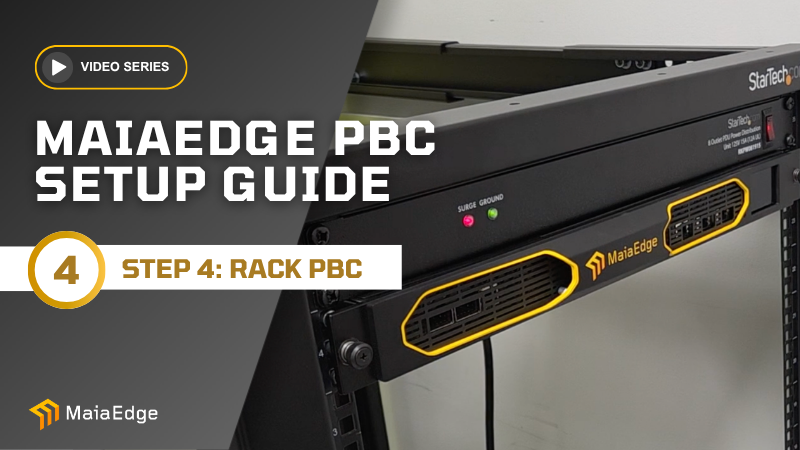
Rack the Path Border Controller
The main event. Extend the side rails from the front of the rack, slide your PBC in along the rails, engage the blue retaining clips on both sides, and tighten the thumbscrews on the rack mount ears to lock it in place.
Note Before installing the PBC into a rack, make note of the Claim Code printed on the manufacturing label on the bottom of the device. You'll need it in the final step.
Port Extender Installation
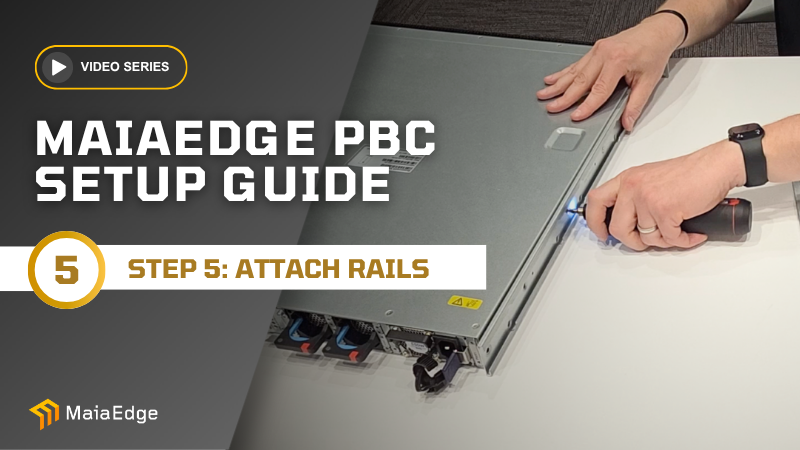
Attach Side Rails to the Port Extender
Attach the rack mount ears to both sides of the port extender using the 02011PE-011 screws from your kit (3 per side). Note that the ears have a defined left and right side. Then install the mounting brackets using the supplied M4 screws (4 per side).
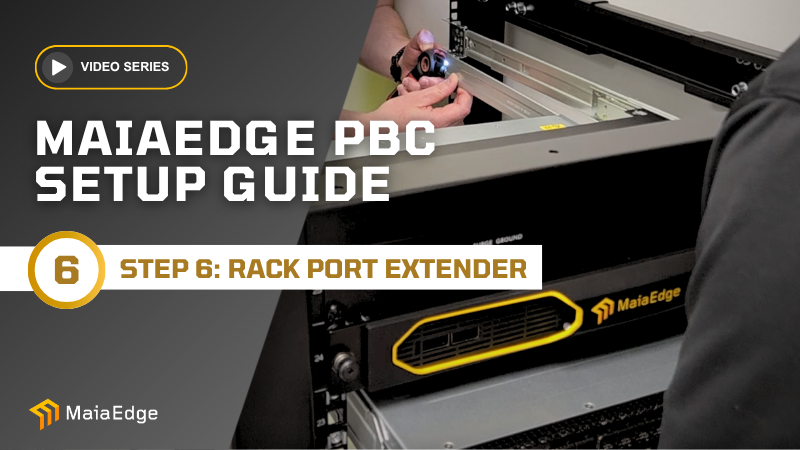
Rack the Port Extender
Slide the side rails over the mounting brackets, push the alignment posts through the rack's mounting holes, and secure the rack mount ears. This step requires two people: one to hold the Port Extender in place while the other attaches it to the rails.
Note The fans installed in the Port Extender blow from front to back. Confirm airflow direction with the sticker on top of the Port Extender. In a cold aisle / hot aisle environment, the front of the Port Extender should face the cold aisle.
Cabling Your Devices
Now that your PBC (and optional Port Extender) are installed, let's get them cabled up.
Your PBC shipped with two power supplies included in the box. Take each one out, and line it up so that the label is facing up, and the power socket is on the right-hand side. Firmly slide each power supply into the receptacles on the rear of the PBC until you hear an audible click. The removal tab, with a blue rubber covering, will briefly retract before it snaps into place when the power supply is fully seated.
The front of your PBC has two windows where the ports are exposed. The left-hand window has two 100G interfaces, numbered 0 and 1 from left to right. By convention, port 0 is used for external connections (to your customers), and port 1 is used for internal connections.
In the right-hand window, from left to right, you'll find a USB port (not currently used), a serial console port, a 10/100/1000 management port, and a 10/100/1000 control port. Connect the PBC's center management port to a network that routes to the Internet. Note that by default, the PBC will attempt to acquire a DHCP lease on its management interface. If you do not offer DHCP leases on this network, you will need to set the PBC's management IP address, gateway, and netmask using the touch screen on the front of the device.

For Deployments with a Port Extender
- Connect one of the included DAC cables between port 0 on the PBC and port 51 on the Port Extender.
- Connect the other DAC cable between port 1 on the PBC and port 52 on the Port Extender.
- Connect the included RJ-45 cable between the control port on the PBC (rightmost port in the right window) and the MGMT port on the rear of the Port Extender (center of the device, at the top).
For Deployments without a Port Extender
Insert the included QSFP+ transceivers into port 0 and port 1, and connect them to your switching infrastructure.
Claiming the PBC
The process for adding a PBC to your account is called "claiming." To claim your device, log in to your MaiaEdge account and enter the eight-character claim code. The claim code can be found on a sticker on the bottom of the PBC or by navigating the menus on the touchscreen display (from the home screen display, tap on the Claim Info button).
If you are installing the PBC on behalf of someone else, that person will need this claim code to complete the onboarding process. Once you've finished the physical installation, let them know the claim code so that they may add the device to their MaiaEdge account.
If you are installing the PBC yourself, log into the MaiaEdge portal using your account credentials, click on Inventory, then click on the Claim Device button in the upper right corner of the screen. Enter the claim code and the new PBC will appear in your inventory.
Safety Information
Important Safety Instructions — Please Read Before Installation
This equipment is intended for installation and use by qualified personnel in data center, colocation, and telecommunications environments. This equipment is not suitable for use in locations where children are likely to be present.
Protective Earth / Grounding
This equipment must be connected to a protective earth ground prior to operation. Connect the equipment to a grounded AC power outlet using the supplied power cord, or connect the chassis ground lug to the installation protective earthing conductor. Failure to properly ground this equipment may result in electric shock or equipment damage.
Multiple Power Sources
The PBC 2000 is equipped with two redundant AC power inputs. Both power sources must be disconnected before servicing this equipment. Disconnect all power cords from both IEC inlets before opening the chassis or performing any maintenance.
Equipment Symbols
The following symbols may appear on the equipment or its labels:
| Symbol | Meaning |
|---|---|
 | Electrical shock hazard |
 | Chassis protection with ground |
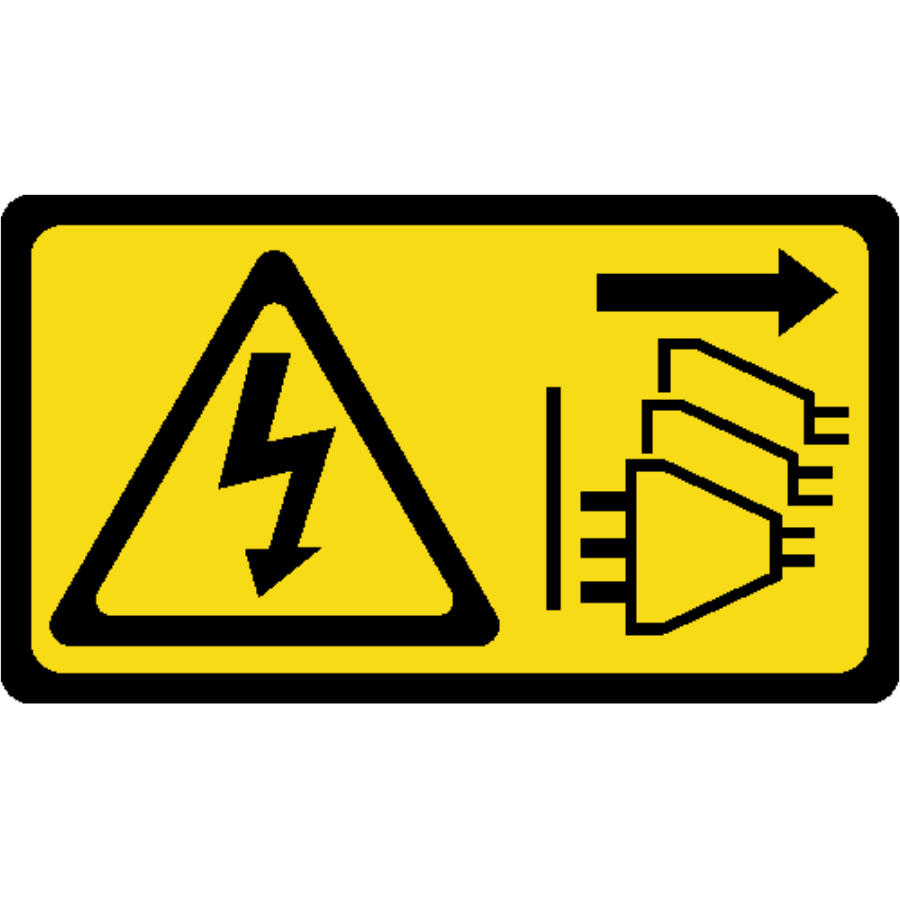 | Multiple power sources — disconnect all before servicing |
Service and Maintenance
This equipment contains no user-replaceable safety components. All service and maintenance must be performed by qualified personnel only. Do not remove the chassis cover while the equipment is connected to AC power.
Internal Battery
This equipment contains a CR2450 lithium coin cell battery used for real-time clock and memory retention. The battery is held in a spring-contact holder inside the chassis and is not accessible or replaceable by the end user. Battery replacement, if ever required, must be performed only by qualified service personnel using the same or equivalent battery type.
Do not dispose of the battery in fire or with unsorted household waste. Dispose of the battery in accordance with local regulations for battery and electronic waste.